
Support
Help for WaiterMate
Need help with setup, purchases, or everyday app usage? We’re here to help. Whether you are getting started or need assistance along the way, our support team is ready.
Before contacting us, we recommend checking the FAQ below — you may find your answer there first.
FAQ
Frequently asked questions
Everything you need to know about setup, staff access, orders, exports, and daily use of WaiterMate.
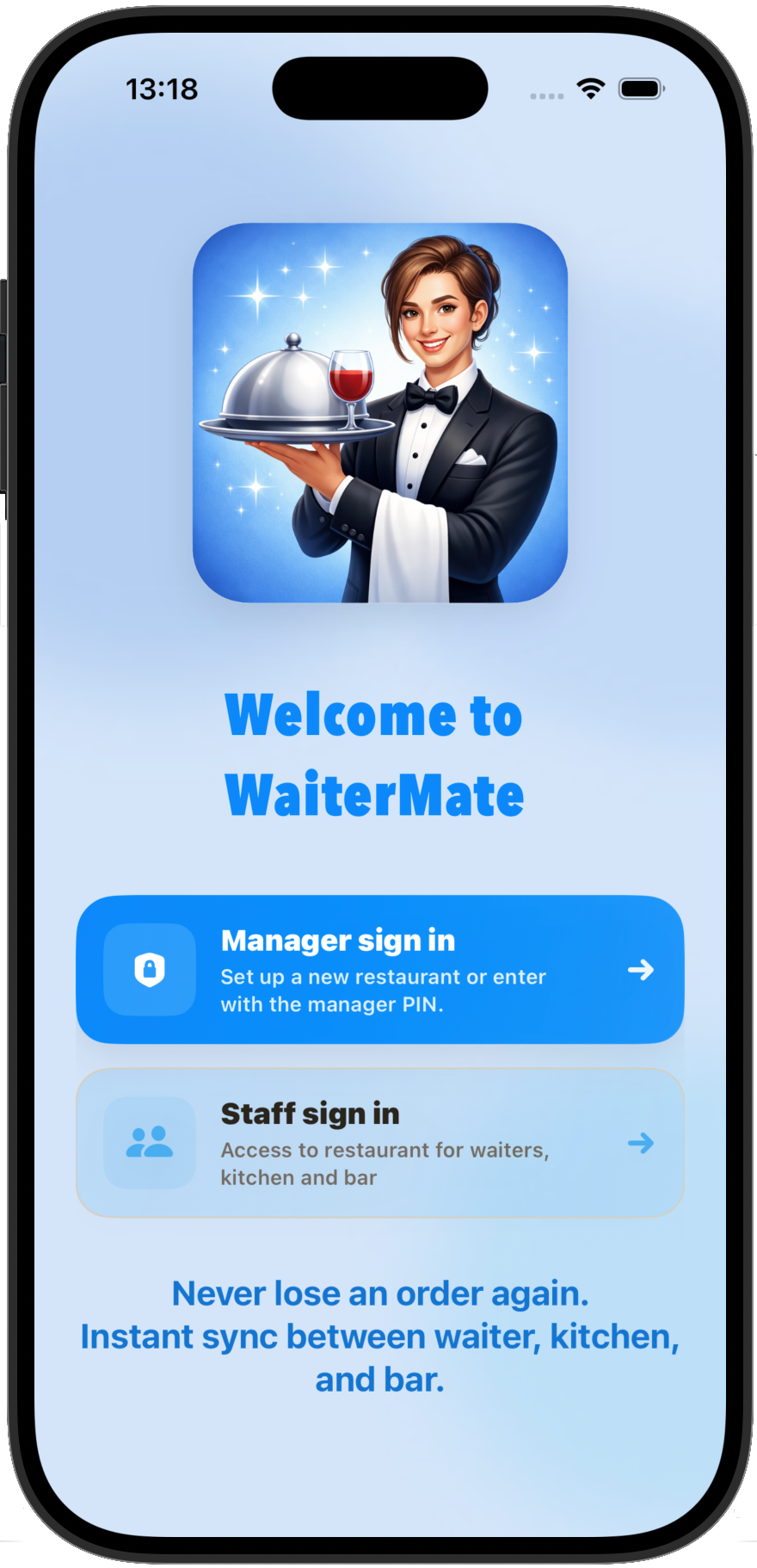
WaiterMate is a restaurant app that helps waiters, kitchen, bar, and managers stay in sync with order handling, staff access, table management, and daily export of closed orders.
Yes, it is free to download. To use WaiterMate, a restaurant owner or manager purchases a one-time in-app purchase via Apple. After purchase, the owner sets up the restaurant (ID, settings, etc.) and adds staff. Staff can then sign in using the restaurant ID and a 4-digit code provided by the manager. Staff do not need to pay anything to use the app.
Not right now, it only supports iOS currently. But an Android version is on its way!
WaiterMate is designed for restaurant teams, including managers, waiters, kitchen staff, and bar staff.
Yes. An internet connection is recommended for syncing, exports, manager activation, and other connected features.
The first time you download the app a manager must setup the restaurant. The manager defines the restaurant name, unique ID and creates a 4-digit pin. After that, managers can sign in with the restaurant ID and their 4-digit PIN.
Staff members sign in with the restaurant ID and their own 4-digit PIN created by the manager.
Please ask your restaurant manager to update your staff profile and set a new PIN.
Yes. Each staff member downloads the app, signs in (free) and can have their own profile and PIN. There are no device limits in this app.
The restaurant ID is the unique code your team uses to access your restaurant workspace in WaiterMate. This ID must be unique, and is setup by the manager.
A manager completes a one-time in-app purchase, receives confirmation through Apple, and then sets up the restaurant inside the app. After setup, the manager creates the restaurant ID and invites staff.
First, check your spam or junk folder. Also make sure the email address was entered correctly during the restaurant setup.
No. Restaurant setup requires a completed one-time in-app purchase before activation.
Open the table, choose items from the menu, and add them to the active order by tapping on the price in the Food and Drinks menu.
Yes. Items can include notes for special requests or instructions.
Yes. Orders can be transferred between tables by holding in the table for a second and then drag the table onto another table. The bill will follow.
Yes. WaiterMate supports split-bill handling.
Yes. Tips can be entered when closing the order.
The order is moved into today’s closed orders and can later be included in the daily export.
Yes. WaiterMate supports station-based workflows so order handling stays organized between waiter, kitchen, and bar.
Yes. When connected properly, the app is designed to keep staff synced across roles in real time.
Yes. Managers can customize food and drink items in the admin area.
Yes. Managers can edit menu item prices.
Yes. Happy hour settings and pricing are supported. In the PRO version you can setup an automatic Happy Hour that will be applied during the hours that is defined in the app.
Yes. Managers can upload and update the restaurant logo.
Go to the export section on the Admin menu, and export the day’s closed orders to the configured email address. Every time an export is sent, the "Today's orders" menu is cleared.
The export is sent to the email address entered in Management Settings.
The CSV includes order details such as table number, items, prices, tax, tips, totals, and who placed the order.
All open bills must be closed before export can be completed. You will see what tables has open tabs on the export menu.
Please check that the restaurant ID is correct and that the PIN is correct.
The restaurant ID may be incorrect, or the restaurant setup may not have been completed yet. Check with a manager.
The code may be expired, entered incorrectly, or already used.
Contact
Questions or problems? Contact us!
If you have any questions about the app, feel free to reach out.